Folder Based Toolbars on the Windows Taskbar

Recently someone asked me how I managed to access a list of files on my machine from a pop-up list on the Windows Taskbar. The ability to add folder links to the Windows Taskbar has been around for many versions of Windows I guess still not everyone realises how easy and/or useful it is. I find it helps my productivity and because they are very easy to create and remove it sometimes helps to create them for short to medium term use too.
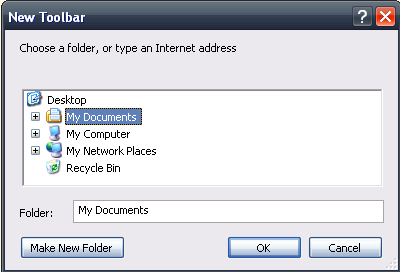
To add a folder as a toolbar on the taskbar just right click on the taskbar, pick ‘Toolbars’ and then ‘Create Toolbar…’. This displays the ‘New Toolbar’ dialog which is basically just a folder picker for you to select the folder you want to display.

Once you’ve picked a folder, that’s it! Now you can move it around on the taskbar like any other toolbar. To remove it, just right click the taskbar again, pick ‘Toolbars’ and unselect it.