WLW Code Plugin

The Live Writer Source Code Plug-in For WordPress.com Blogs

The following software is free to download and use, subject to the Creative Commons License.

This is a Windows Live Writer Plug-In for ‘Syntax Highlighting in WordPress.com blogs’. It uses the Syntax Highlighting feature of WordPress.com to format your source code into the correct syntax for the type of source code snippet (e.g: C#, XML, Java etc). The result is a clear formatted code snippet in your blog like this:

string outputMessage;
bool ok = RunProcess(exePath, arguments, out outputMessage);
if (checkOutput == true)
{
   if (outputMessage.Contains(success))
   {
       return true;
   }
}

Whilst there are numerous plug-ins for self-hosted WordPress blogs and for other blog engines this one fills the specific requirements needed for a plug-in that targets WordPress.com hosted blogs. It inserts the correct ‘Wordpress shortcode’ entry around your code snippet to ensure it is displayed correctly in your WordPress.com blog. For details of Syntax Highlighting in WordPress.com, and the supported languages, check out: http://support.wordpress.com/code.

For more details on this plug-in and how it was created then checkout my related blog posts:

1) Syntax highlighting in WordPress.com hosted blogs and how to create a windows live writer plug-in

2) New version of source code syntax highlighting live writer plugin for wordpress.com blogs/

3) Live Writer Syntax Highlighting Plug-in v1.2.0 Released

4) Live Writer Syntax Highlighting Plug-in v1.3.0 Released

Using the Plug-In:

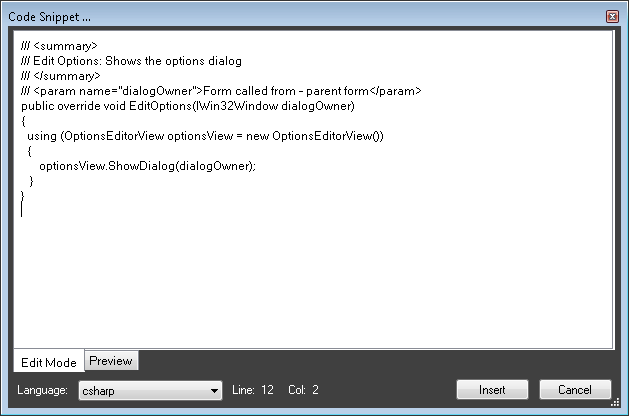
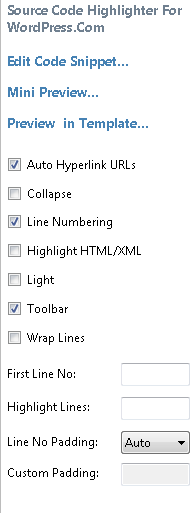
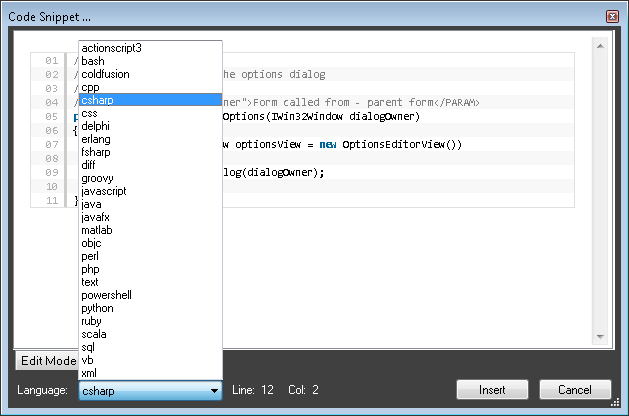
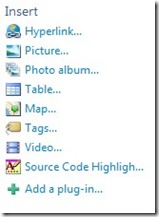
Create your blog post in Windows Live Writer as normal but when you want to key some Source Code choose Insert > Source Code Highlighter from the right hand Menu, then key or paste your source code into the pop up form. Select the type of source code it is (e.g.CSharp etc) and click insert. Once inserted you can use the properties menu bar to customise the way source code is displayed.  The plug-in will also display a preview in the editor of what the source code will look like once posted on your blog.

Screenshots:

Inserting a code snippet & setting options: 
WLW1200_6 CodeEntry PropsWLW2011

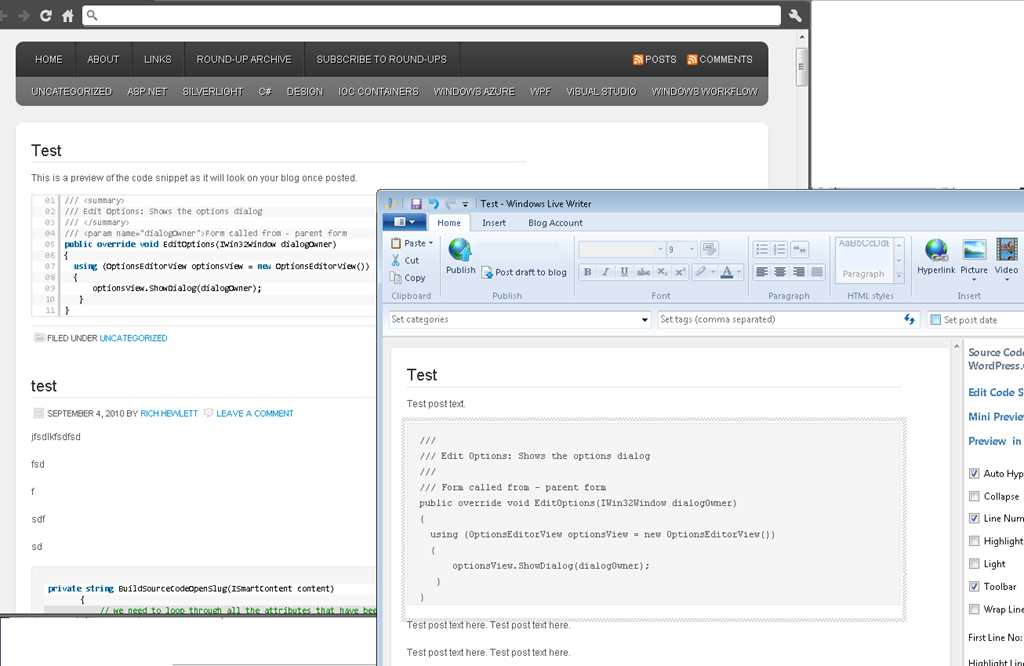
Preview your code in the code editor:

CodeEntry2 CodeEntry3

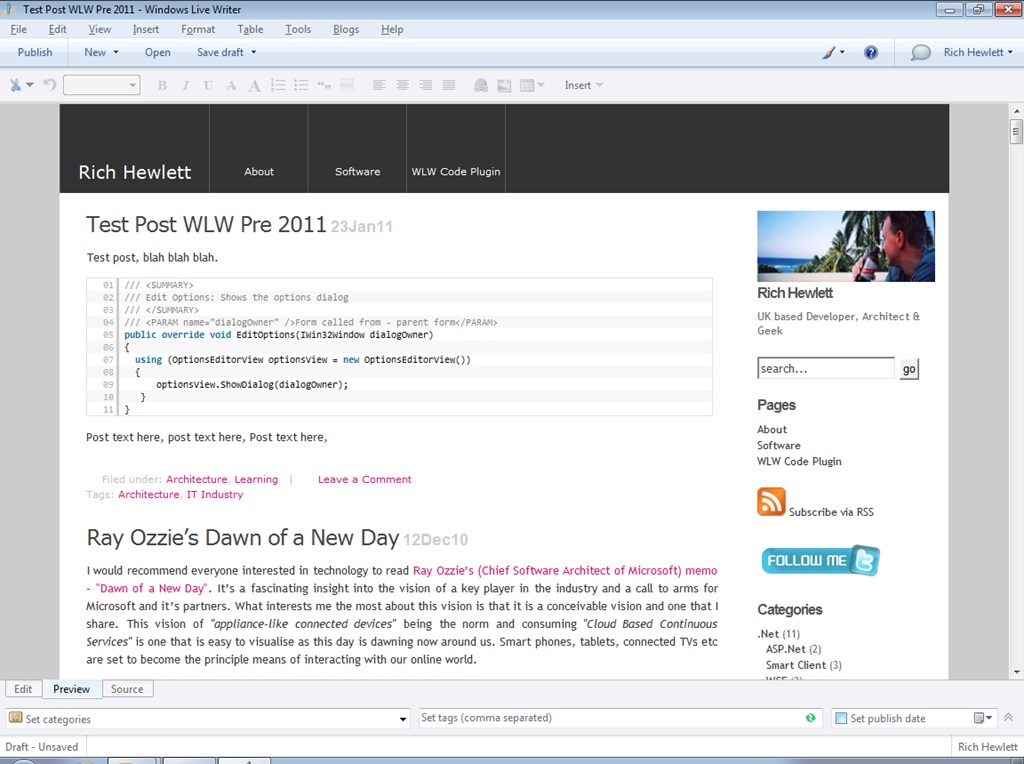
For Versions of Live Writer pre 2011 preview your code in the editor: 

WLWPre2010EditorPreview WLWPre2010PProps

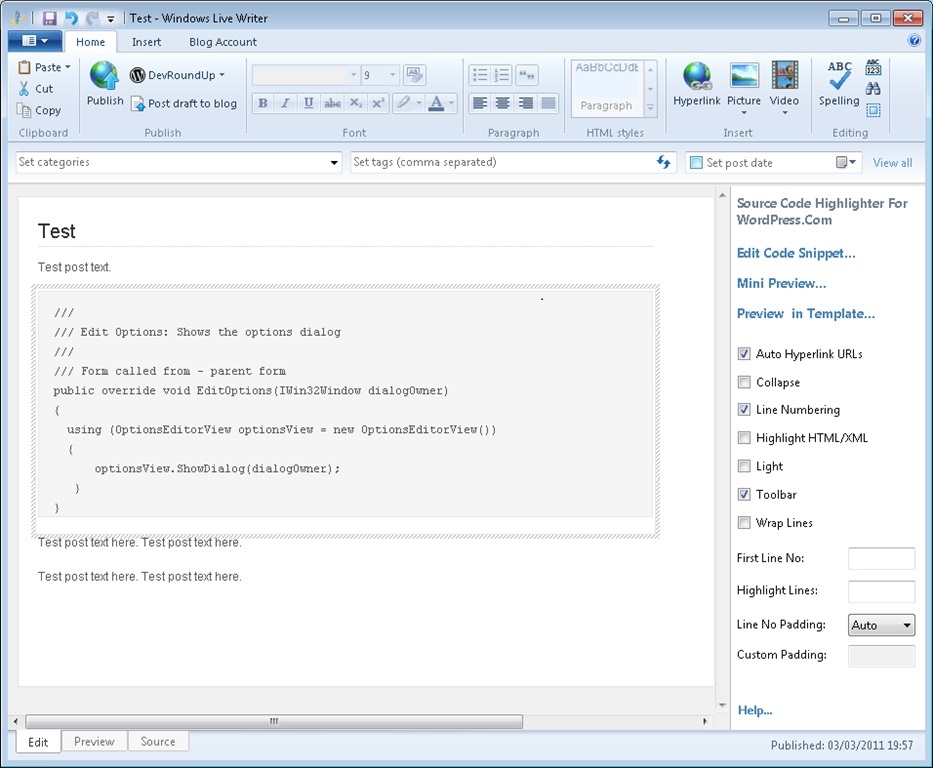
For Live Writer 2011 you can preview your changes within your blog template externally to Live Writer:
WLW2011Edit1 WLW2011TemplatePreview WLWPre2010Preview

Features:

  1. Easy to insert code and manage it within the editor. Not only does it make your source code stand out on your blog but this plug-in also enables you to manage the code snippet easily without messing about with formatting or spell checking.
  2. Choose from the large number of languages supported by WordPress.com. Plus this list can be modified on your machine to just see a smaller list. By modifying the text file included in the download zip file, and locating it in the same folder as the plug-in, it is possible to customise the list of languages in the plug-in. If you only post code snippets in a few formats (e.g: C# and XML) then you can remove the others from the text file thus removing them from the plug-in list for improved usability. Also if WordPress add more languages to the list of supported syntaxes then it’s possible to add the new language to the text file which will allow you to use the new language syntax without downloading a new version.
  3. Supports all the features of the WordPress.com code highlighting functionality, such as ‘no toolbar’, ‘line highlighting’ etc. For the full list check out http://support.wordpress.com/code.
  4. Easy Installation. Just copy the files to the Windows Live Writer plugins folder (see below)
  5. Preview functionality shows how your code snippet will look once its posted making it easy to visualise how your post will look. 

    For Pre 2011 Versions of Live Writer you can view a preview of your code snippet within the Edit and Preview views in Live Writer itself. (NB: This is implemented by adding hidden JavaScript to your post whilst it’s in Live Writer but then substitutes this with the correct WordPress tags when you publish. This feature can be turned on/off for each code snippet).

    For Live Writer 2011 it is not possible to view the code snippet preview on the Edit and Preview views but instead you can choose to display the code snippet externally in your browser at the click of a button. This external preview will show the code inside your cached blog theme template.

    For all versions you can now preview your changes within the Code Editor window for fast review of your code changes.

  6. You can trim the whitespace from the code snippet after pasting it in.
  7. You can easily see the line and column number for each position in the code snippet to ensure that you are highlighting the right lines or that you don’t exceed your chosen snippet width.
  8. The Code Entry Window now enables scrolling so that you can easily mange your code snippet.

Installation:

To install the plug-in download it from the link below, unzip it and then copy the files to the Plugins folder under the Windows Live Writer program files folder, for example C:\Program Files\Windows Live\Writer\Plugins. Optionally you can make use of the customisable language list by updating the text file, or delete it as the plug-in will work without it .

Version 1.3.0  (Recommended) More Details Download Now
Version 1.2.0 More Details Download Now
Version 1.1.0 More Details Download Now
Version 1.0.0 More Details Download Now

Note: This plug-in requires the Microsoft.Net Framework V2.0 or above (installed with Live Writer), available here.

ALL SOFTWARE IS PROVIDED AS-IS. THERE IS ARE NO WARRANTIES WITH RESPECT TO SOFTWARE AND I HEREBY DISCLAIM ALL WARRANTIES, EXPRESS, IMPLIED, OR STATUTORY. NO WARRANTY IS MADE THAT THE SOFTWARE WILL OPERATE ERROR-FREE OR REGARDING THE RESULTS TO BE ACHIEVED.


43 Responses to “WLW Code Plugin”

  1. 1 Gerhard Lausser

    Hi Rich,
    thanks for writing this plugin. It makes -handling with live writer so easy.The only thing i miss is the type=plain for code samples (or better, configuration file samples) where syntax highlighting is not desired.

    Greetings from Munich,
    Gerhard

    • 2 Rich Hewlett

      Gerhard, there is a source code language type of ‘text’ which should be ideal for situations where you want plain formatting. Try out the new version and see what you think.

  2. This is a great plug-in, I was using another one, but this one now looks more refined.
    Great job by the way.

    I appreciate it…

    Until next time,
    LEHenryJr

  3. 4 Viv

    Hi, Thanks for the useful plugin. I was very happy with 1.1.0. I am having plenty of problems with 1.2. I am using LiveWriter 14.0.8117.416 in Windows 7 64 bit.

    1. XML tags in my code snippet are being capitalized.
    2. This new version adds a lot of JavaScript code, which is not what I like.
    3. Preview is not working very well. Sometimes, it shows the JavaScript added by the plugin.

    • 5 Rich Hewlett

      Hi, Viv.

      Thanks for the feedback., my responses are below:

      1. The XML tags are capitalised by the WordPress.com syntax highlighter as part of the formatting and so will be shown in capitals on your blog once it’s posted regardless of using the plug-in or not.
      2. The plug-in does add JavaScript but this is purely for the preview functionality to work within Live Writer and the script will not be posted with the blog post when you submit it.
      3. Sorry to hear that preview is not working well for you, but it sounds as though the problem could be just the way Live Writer works. If you change any of the snippet’s properties in the editor then the preview will temporarily be disabled and the raw snippet code will be displayed until the view is refreshed by switching to Source or Preview views. Unfortunately Live Writer doesn’t refresh the editor view unless you switch to another view and back again. Perhaps this is the problem you’re experiencing?

  4. Really nice plugin, thanks for making it !

    There’s only one thing I’d like to change: would it be possible to use the WordPress.com tags instead of HTML + CSS + JS ? I often use the code view, so I’d prefer not to have the markup cluttered with unreadable areas like that…

    • 7 Rich Hewlett

      I’m glad you like it Thomas.

      The HTML + CSS + JS is purely to implement the Preview functionality within Live Writer and it doesn’t get included with your blog post. When you publish your post the code snippet is enclosed in the appropriate ‘sourcecode’ tags supported by WordPress. If you don’t want to see any of this markup within LiveWriter then you can disable preview for the code snippet via the right hand properties tab.

  5. Hi Rich. I like your plugin. One thing I noticed off the bat was an issue with the Wrap Lines. It appears that the code sent to WordPress looks like this

    blah blah

    . When it renders in my browser IE, Firefox, Chrome. The lines do not wrap then just extend out. If I remove the

     tags inside the WordPress Web editor then they wrap as normal.  Just wondering why the plugin needs to output the 
     tags around the  block?  Thanks.
  6. I figured it out. Please delete my previous comments above. I put it all in here.
    Basically your plugin is outputting a “pre” tag wrapper around the “sourcecode” block. I figured out you need this because wordpress will collapse the code that is returned by the GeneratePublishHtml function if the code isn’t contained within a “pre” wrapper. Unfortunately this pre wrapper is telling browsers to not wrap the lines. Therefore a CSS style=”white-space: normal” is need on the “pre” wrapper element. When this style is used the browsers will now render the code correctly without the line breaks.

    Hope this helps. Do you think it would be possible to add this style attribute into a new version of your plugin?

    Thanks

    • 10 Rich Hewlett

      Thanks for your comment and for spotting this issue. I hope to address it in the next version.

  7. 11 Nate

    Hi there–

    Thank you for the plugin. It posts well to my wordpress.com account.

    The preview doesn’t seem to be working at all for me, however. I wonder if this is because I am using Live Writer 2011 which is the version that is available from Microsoft’s site. From the screenshots on this page it appears that you are or were using an earlier version.

    Would you expect the preview functionality to work with LV 2011? If no, could you let me know what version you use, and if you have a link to download it that would be very helpful.

    Thanks again in any case.
    -nate

    • 12 Rich Hewlett

      Hi Nate. After some investigation it appears that the latest version of Live Writer (included in Live Essentials 2011) does not support running JavaScript in the preview or edit modes. This is required for my plugin to generate the preview. I am looking at ways to get around this as I want to support the latest version of Live Writer. In the meantime you may be able to download the original Live Essentials. Try this link http://g.live.com/1rewlive3/en/wlsetup-web.exe.

  8. Many thanks for this plug-in. It seems to do exactly what I want.

  9. 14 Kevin

    Richard,

    Thanks for writing this plugin.

    I’m encountering a problem where I end up with a thick grey border around my code snippet, you can see a example of this here:

    http://blog.zygonia.net/2011/05/11/test-post/

    I’ve tried two different themes and the border is always there. If I edit the post in WordPress after posting and remove the


    wrapper around the then the grey border goes away. Obviously this isn't an ideal solution especially where a post could have several code snippets.

    Any ideas how to solve this?

    I'm running WordPress 3.1.2 and posting using WLW 2011 (Build 15.4.3508.1109).

    Cheers
    Kev

    • 15 Rich Hewlett

      Hi Kev.

      I’m not able to see your test post, but the issue you describe is caused by the CSS properties on your WordPress template. It’s usually due to the CSS properties on your PRE or CODE elements specifying a border or backcolor. The site is therefore rendering correctly but not as you’d wish. I would recommend changing the CSS file to remove the border or backcolor for these HTML elements. There is not a way of automatically removing these during posting from Live Writer in this version of the plugin I’m afraid. Perhaps I can look at making the HTML output more customisable in future versions but LiveWriter is very particular on the HTML from plugins and so I’m not sure how customisable it could be.

      Rich

  10. Nice work, It would be good if you could set a default though

    • 17 Rich Hewlett

      Glad you like it.

      Do you mean a default language in code entry form? That’s a good idea. It could default to the last one you used. I’ll add it to my improvements list.

      • Yeah that’s right, I find i’ll most likely use csharp so it would be good it it defaulted to that. last used would be fine.

  11. Very nice. I thought I was going to have to write posts with Live Writer and then add the code snips via the WP web editor. This makes it much easier. I agree with the previous comment. Remembering the last used language would be a great improvement.

  12. I’ve found an issue that seems to be caused by the Div tags created by this plugin.

    1. Post a page with some source code (i’m using csharp) using this addin
    2. In Windows Live Writer Open the page you posted in the previous step

    The title and categoises of the post are not retrieved. After some testing if i remove this div tag from around the tags in wordpress then the post loads the title and category but the plugin no longer functions, however the source code still functions correctly in my post

  13. 21 Erno

    Excellent plugin! Thanks. The only issue I have is that when you download a post that has code previously inserted by using the plugin from the server I can’t edit its properties anymore. The plugin removes the id that allows it to recognize the previously entered snippet.


  1. 1 Posting Source Code with Microsoft Live Writer and Wordpress « Enjoy IT – SOA, Java, Event-Driven Computing and Integration
  2. 2 Windows Live Writer와 Wordpress 그리고 Syntax Highlighting « Unknown
  3. 3 Trying out Windows Live Writer « Tech, TeX and Theory
  4. 4 Kod źródłowy na blogu WordPress.com « Michał Urbański Blog
  5. 5 Rich Hewlett’s WLW WordPress.com plugin « Michał Urbański Blog
  6. 6 Pilih-pilih Wordpress Blog Client « Dedi Purwanto
  7. 7 Live Writer Syntax Highlighting Plug-in v1.3.0 Released « Rich Hewlett
  8. 8 Testing A New Syntax Highlighter « Surrounding The Code
  9. 9 Source code plug-in for Windows Live Writer | Rob's blog
  10. 10 Guaranteed Analysis Complete | Joe's Blog
  11. 11 WordPress Blog Tips | Joe's Blog
  12. 12 Code Syntax Highlighting for WordPress « Ryan Burnham's Blog
  13. 13 Posting source code on Wordpress.com with Windows Live Writer | danlimerick
  14. 14 Code Formatting for Windows Live Writer and Wordpress « SQL Server Stuff
  15. 15 WLW Code Plugin + SyntaxHighlighter Evolved でWLW経由でソースコードをきれいに表示する WordPress de SEO をやろう!
  16. 16 Java Script in CRM 2011– Quick Reference Guide « Gareth Tucker's Microsoft CRM Blog
  17. 17 Call Centre Optimised CRM–An Example Solution « Gareth Tucker's Microsoft CRM Blog
  18. 18 Adventures in WordPress « iamggreen
  19. 19 2012: Windows Live Writer Top 10 Plug-ins – Most Useful | LEHSYS
  20. 20 Adventures in WordPress | iamggreen
  21. 21 Jetzt mit Code Plugin für neue Beiträge « SquadWuschel's Blog
  22. 22 Windows Live Writer, the best plugin to insert source code « Kevin @ Programming

Leave a Reply

Fill in your details below or click an icon to log in:

WordPress.com Logo

You are commenting using your WordPress.com account. Log Out / Change )

Twitter picture

You are commenting using your Twitter account. Log Out / Change )

Facebook photo

You are commenting using your Facebook account. Log Out / Change )

Connecting to %s


Follow

Get every new post delivered to your Inbox.